IT
OmnvertImage • Document • Network

PNG / SVG to STL Converter

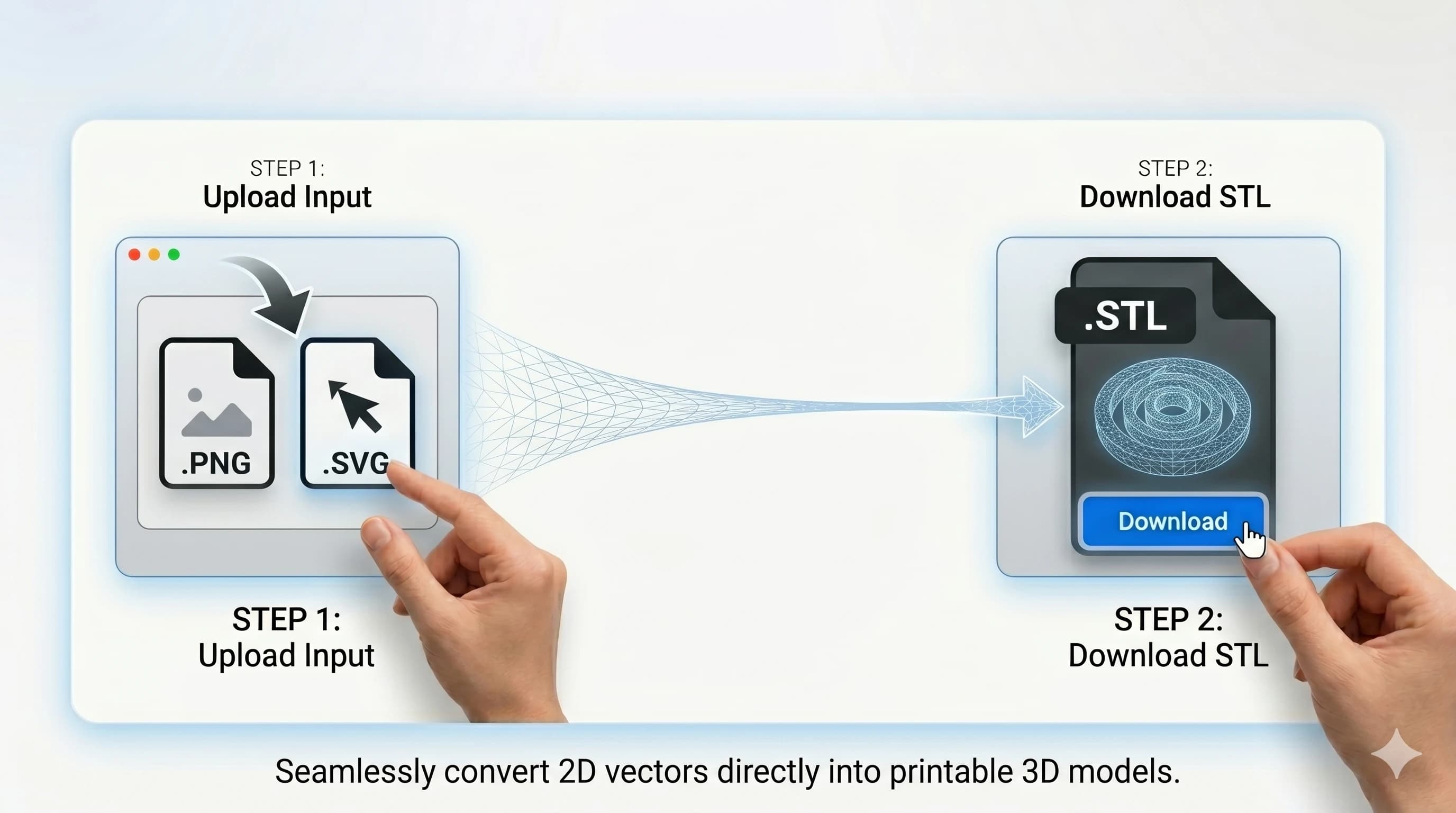
Turn flat graphics into 3D‑printable STL files. Upload a PNG or SVG, set width/height and thickness in mm, and download an STL for simple signs, badges, logos, and maker projects.

Conversion runs on a temporary worker service to keep this page fast. Treat uploads as transient and avoid sensitive files.

How it works

  1. Upload a PNG or SVG.
  2. Set width and/or height (mm) plus thickness.
  3. Convert and download your STL.

Use cases

  • Logos, icons, and simple silhouettes
  • Name plates, signs, and badges
  • Stamps and maker project labels

Tips for cleaner STL output

  • SVG usually produces cleaner geometry than PNG.
  • Use high-contrast PNGs (simple shapes, not photos).
  • Avoid tiny details; simplify paths and edges.
  • If your slicer asks for units, choose millimeters (mm).

About

This PNG/SVG to STL converter turns a flat graphic into a simple 3D model by extruding it into thickness. Upload a PNG or SVG, set your target size in millimeters, choose a thickness, and download a ready‑to‑slice STL. It’s a practical workflow for signs, badges, name plates, stamps, and maker projects—not a tool for sculpted, photo‑realistic 3D models.

Sizing is intentionally simple: thickness is required, and you can enter a width and/or height in mm. If you provide only one dimension, the other is derived to preserve aspect ratio. If you provide both, the tool preserves aspect ratio by default and fits the shape inside your width × height box.

SVG usually produces cleaner geometry because it starts as vector paths. PNG is traced from contours, so very noisy images (especially photos, gradients, or blurry edges) can produce rough borders in the resulting STL. For the best results, use high‑contrast artwork with clear silhouettes and simplified shapes.

Tip for printability: keep small details above your printer’s effective resolution. If thin features disappear in a slicer preview, increase the overall size or simplify the graphic. Since STL does not embed units, most slicers assume millimeters—this tool outputs sizes in mm.

Privacy note: conversion is performed by a temporary conversion worker so the main app does not do heavy STL generation. Treat uploads as transient and avoid sensitive files. If a conversion fails, you can retry with the same settings.

If your slicer reports non‑manifold edges or missing faces, try an SVG version of the same artwork (or simplify the PNG), increase thickness slightly, and re‑export. Simple, vector‑like inputs usually produce the most reliable watertight meshes.

PNG / SVG to STL Converter is designed to be straightforward: pick your input, choose the output settings, and generate a result you can copy or download. We focus on predictable defaults so you can get a usable output quickly, then fine-tune only when you need to.

If you’re using this tool for work, treat the result like any other export: verify a small sample first, then run the full job. Small checks (file size, encoding, preview, or a spot-check of values) prevent surprises later when you publish, upload, or share the output.

Quality and compatibility often pull in different directions. When you want maximum compatibility, choose widely supported options. When you want smaller size or faster delivery, pick modern formats and compression settings—but keep an original copy so you can re-export without compounding losses.

Privacy matters. Some tools run fully in your browser, while others may need server-side processing (for heavy conversions or specialized libraries). Where uploads are required, keep files non-sensitive and avoid including secrets in inputs. Always review the final output before sharing publicly.

Troubleshooting tips: if the output looks wrong, try changing one setting at a time, and confirm your input is what you think it is (color profile, transparency, encoding, delimiters, or line endings). Many issues come from an unexpected input variant rather than a broken converter.

FAQ

What files are supported?
PNG (.png) and SVG (.svg) are supported. For best results, use high‑contrast shapes and clean edges.
Is PNG or SVG better for STL?
SVG is usually better because vectors convert to cleaner outlines. PNG is traced from pixels and can produce rough edges for noisy images.
Do I need both width and height?
No. Enter at least one. If you enter only width or only height, the other dimension is derived to preserve aspect ratio.
What thickness should I use?
For signs and badges, 1–3 mm is a common starting range. Increase thickness for stiffness and durability.
Can I use this for logos and signs?
Yes—this tool is best for flat graphics like logos, icons, and silhouettes that you want to extrude into a printable plate.
Why does my PNG produce rough edges?
Low resolution, compression artifacts, gradients, and blurry edges make tracing noisy. Use a higher‑contrast image or switch to SVG.
Is my file stored?
Conversion is handled by a temporary worker service. Treat uploads as transient; avoid sensitive files.
Why won’t my STL open in a slicer?
Try re‑exporting with a cleaner SVG/PNG, increasing thickness, and importing again. Some slicers are strict about mesh validity—vector‑like inputs tend to work best.

Related Tools