Azatep★★★★★
Nice
succesfully
PNG-to-AVIF is the cleanest file-size win for UI assets and illustrations. AVIF supports full alpha like PNG, and in lossy mode typically produces files 50-70% smaller at perceptually identical quality. The trade is browser support — good but not universal — and slower encoding. Use this for hero graphics, illustrations, and any PNG on a high-traffic route where every KB matters. Keep a WEBP or PNG fallback ready for older clients. If you're optimizing a whole library, batch the PNGs, measure the actual file-size drop, then decide if the quality dial is worth a notch lower or higher.
Upload a PNG → get AVIF.
This tool processes on your device; your file is not uploaded for processing.
PNG-to-AVIF is one of the larger size wins available on the modern web, and unusually for that kind of swap it doesn't force a transparency compromise. AVIF carries a full alpha channel, the same as PNG, so transparent UI graphics, logos, illustrations, and stickers all transit cleanly without flattening. The output is typically 50–70 percent smaller than the source PNG at perceptually identical quality in lossy mode, and meaningfully smaller even in lossless mode where every pixel is preserved exactly. For an asset library that's been growing PNG files for years, this conversion can shrink the served size of an entire route without a visible difference to anyone using a current browser.
The lossless versus lossy decision matters more here than for most format swaps, because the right answer is genuinely content-dependent. Lossless AVIF is the right pick for icon sets, UI sprites, logo lockups, screenshots that include text, charts, and any pixel-art-style graphic where a single softened edge would be a problem. The output is a byte-for-byte preservation of the source pixels, just stored more efficiently. Lossy AVIF, on the other hand, is the right pick for transparent illustrations and photographic-with-alpha images where the file size is dominated by smooth gradients rather than hard edges — at lossy quality 60–70 the difference is essentially invisible, and the file shrinks by a much larger fraction than lossless can manage.
Some PNGs are essentially photographs that ended up in the wrong format. A transparent shadow rendered behind a product shot, a screenshot of a photo-heavy page, a film still saved with a faint vignette — these files are huge as PNG because PNG's compression has nothing to offer for that kind of content. They shrink dramatically as lossy AVIF, often by an order of magnitude. The rule of thumb that works most of the time: if the PNG is over a megabyte and the visible content is mostly photographic, lossy AVIF will surprise you with how much smaller it gets without anyone noticing on a normal screen.
Alpha behaviour deserves a separate mention because AVIF handles transparency in a more sophisticated way than people often expect. The alpha channel is stored separately from the colour data in lossy mode, which means quality settings affect the visibility of colours while transparency stays sharp. So a logo with a soft drop shadow can be saved at lossy 70 and the shadow's edge still feels clean even though the colour values inside the shadow have been compressed. That's a feature unique to AVIF and WEBP — JPEG can't do anything comparable, and PNG can only achieve the same effect with much larger files.
Browser support for AVIF is now strong enough to use as a primary served format for transparent assets. Chrome and Firefox have shipped support for years; Safari added it in 16.4 in 2023, which means the vast majority of active iPhones decode AVIF natively. Edge inherits Chromium's support. The remaining gaps are mostly older devices on stale software, certain in-app webviews on minor platforms, and a long tail of internal tools that were never updated. For high-traffic public routes, pairing AVIF with a PNG or WEBP fallback through the picture element covers everyone with no compromise.
Encoding speed is the cost AVIF charges for its size advantage. AVIF compression is computationally heavier than PNG by a wide margin, especially in lossless mode where the encoder has to find the most efficient representation for every single pixel. That's why most CDNs don't transcode on the fly — the latency would be unacceptable. The model that works in practice is to do the AVIF encode once at build or upload time, store the result, and serve from there forever. A few seconds of one-time encoding for a permanent, repeatedly-served file is an obviously good trade. The tool here handles a single file at a time, suitable for hero graphics and one-off content rather than catalogue-wide migrations.
Two technical notes. Animated PNG is rare but exists, and it does not survive this converter — only the first frame ends up in the AVIF output. If the source is an animated APNG that needs to keep its loop, look for a converter that targets animated AVIF specifically. Colour profiles are preserved as sRGB across the conversion, matching what every modern browser assumes, and EXIF / metadata fragments that PNG sometimes carries are dropped on the way out, which is the right default for files heading to the public web. AVIF can carry HDR and wide-gamut data in principle, but for sources that started life as standard sRGB PNGs none of that comes into play.
Game development asset pipelines have started picking up AVIF for sprite atlases and UI textures, especially in HTML5 and PWA-distributed games where every megabyte of initial download is felt directly by player drop-off rates. The lossless mode is the relevant one — game UI sprites need to remain pixel-accurate, but the lossless AVIF compression of a sprite atlas typically beats lossless PNG by 20 to 35 percent depending on content. Web-based engines like Phaser and PixiJS now support AVIF natively, and Unity's WebGL build can serve AVIF through HTTP delivery if the asset bundle path supports it. For indie game developers shipping web builds, converting the entire UI sprite library to lossless AVIF is one of the cheapest one-time wins on the asset budget.
Design system asset workflows benefit specifically from this conversion in a way that PNG-to-WEBP doesn't quite match. A modern design system usually ships icons in multiple sizes (16, 24, 32, 48, 64, 96, 128, 256), multiple colour variants for light and dark themes, and sometimes filled and outlined versions. The total asset count for a single icon family quickly reaches a hundred or more PNGs. Converting that whole family to lossless AVIF tends to compress it to roughly half the size of the WEBP equivalent and a quarter of the original PNG, all without changing a single visible pixel. For libraries shared across multiple internal apps, that's a real reduction in bundle size at the consuming side, and the source-of-truth PNG can stay in the design tool's master while the AVIF set ships with the runtime.
Browser fallback strategy is the practical question that comes up next. The picture element with multiple source children is the answer that's stood the test of time: AVIF first, then WEBP, then PNG as the universal fallback. Browsers walk the source list in order, take the first one they understand, and the rest are ignored. That gives you the size benefit of AVIF on every modern client and a guaranteed-readable PNG on anything older without doing user-agent sniffing or runtime feature detection. The build step that produces the AVIF doesn't need to do anything special — output AVIF, output WEBP, output PNG, wire them into picture, ship it. The conversion tool here handles the AVIF leg of that pattern manually, which is occasionally the right granularity for one-off hero images.
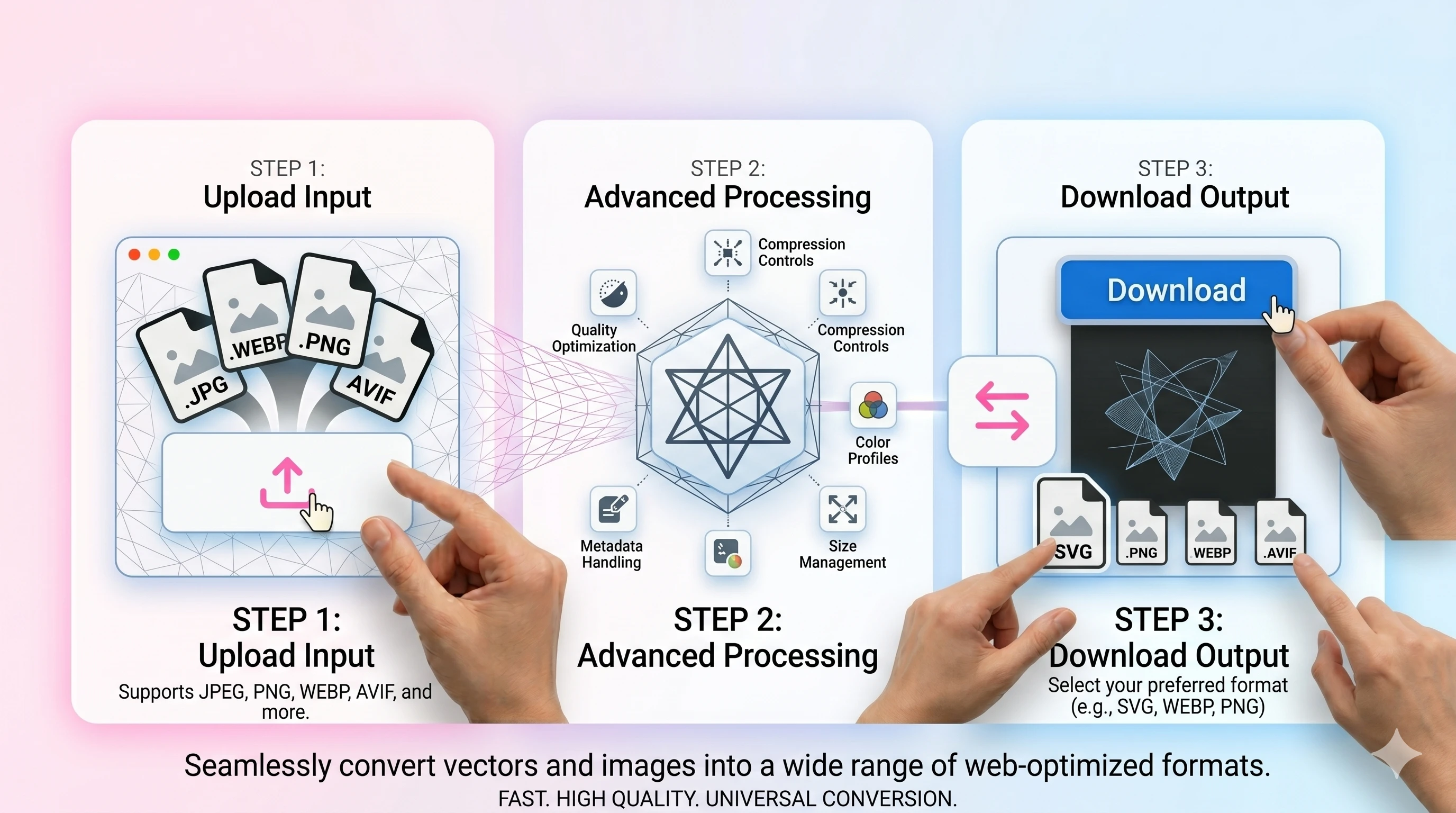
Practically the converter is one drag and drop. PNG goes in, AVIF comes back, with toggles for lossless versus lossy and a quality slider that only matters in lossy mode. Files are processed in temporary storage with short-lived download links, no signup or watermark, and no daily quota counting down in the background. Multiple files can run through one after another, which is the right mode when migrating an entire icon set or asset folder rather than handling a single hero. AVIF encoding is intentionally a little slower than the WEBP path because it's doing more compression work; expect normal sub-megabyte PNGs to convert in a couple of seconds, and large multi-megabyte lossless conversions to take noticeably longer because the encoder is matching every pixel.
Yes—AVIF supports alpha, so transparent PNGs can stay transparent.
Most modern browsers do. Consider a WEBP/PNG fallback for older environments.
Start around 40–60 for photos and adjust by preview. Increase quality for crisp graphics.
Not always. For maximum compatibility, use JPEG/PNG or WEBP; AVIF is best for modern delivery.