WEBP to PNG converter
A lot of tools still don't accept WEBP uploads — older CMSes, email editors, outdated image libraries in internal apps — so converting WEBP back to PNG is the practical workaround. The converter decodes the WEBP (including animated frames, from which it exports the first) and images with alpha, and writes a standard PNG. Use it when you've saved an image from a modern site (most of which serve WEBP now) and need to paste it into a document, slide deck, or a form that insists on a 'traditional' image format. Transparency is preserved; the output is a simple, universally accepted PNG.
Upload a WEBP → get PNG.
Original
Converted
This tool processes on your device; your file is not uploaded for processing.
About
WEBP is now everywhere on the open web, but the moment a file needs to leave the browser it runs into a long tail of tools that still don't recognise it. Older content management systems, internal ticketing apps, several enterprise design suites, certain Word templates, the photo library on a six-year-old phone, and a surprising number of academic journal submission portals will all reject a WEBP outright or quietly fail to render it. Converting back to PNG is the practical workaround — PNG opens in essentially every image-aware piece of software written since the late 1990s, with no installs, plugins, or version-check warnings standing between you and a usable file.
The most common path into needing this conversion is saving an image from somewhere modern. Save off a graphic from a current news site, a marketplace listing, a recipe blog, or a documentation site, and the file is increasingly likely to land on disk as .webp because that's what the CDN served. That's perfectly fine until the next step — pasting into Word, dropping into PowerPoint, attaching to a Trello card, uploading to a school assignment portal, sending to a print shop's submission form — refuses to acknowledge the extension. Converting to PNG once removes that friction entirely instead of fighting each receiving system one by one.
PNG is a true-lossless format, so the conversion preserves every pixel of the WEBP exactly, with one nuance: WEBP itself can be either lossless or lossy. If the source WEBP was lossy (which is typical for photographs on the open web), the PNG output preserves the lossy bytes verbatim — it doesn't make the image look better than the WEBP, it just stops further degradation. If the source WEBP was lossless (typical for icons, UI assets, screenshots), the PNG output is perfectly identical to whatever the original creator handed off. Either way, what comes out of this converter will not look worse than what went in.
Transparency carries through cleanly. WEBP supports a full alpha channel, PNG supports a full alpha channel, and the conversion preserves it byte-for-byte regardless of whether the source was a transparent UI graphic with hard edges or a photograph with a soft drop shadow. That matters because many tools that reject WEBP also need transparency for the work being done — a logo placed over a background colour, a sticker layered into a design comp, an icon dropped onto a slide with a coloured theme. Going through PNG keeps the alpha intact instead of forcing a flatten-against-white fallback.
File size is the obvious trade. PNG's lossless compression simply isn't designed for the kind of photographic content that WEBP handles efficiently, so a 200KB photo WEBP can come out as a 1MB or 2MB PNG without any quality changing. That's not a defect in the converter; it's the structural reason the web migrated to WEBP in the first place. If size is the constraint and PNG is only being used as a transit format on the way to something else, accept the temporary inflation, do whatever editing or uploading you need, and discard the intermediate PNG when done.
Animated WEBP is worth flagging as a small edge case. Some WEBPs are short looping animations rather than still images, and standard PNG cannot store animation frames. When an animated WEBP is converted, only the first frame ends up in the PNG output — useful as a still preview, less useful when the animation is the point. For loop preservation, look for an APNG converter or extract frames as a sequence; static PNG is structurally not the right destination for a moving image.
Two technical details worth knowing. Colour profiles are preserved as sRGB across the conversion, which matches what nearly every viewer expects, and metadata that WEBP sometimes carries (EXIF chunks, ICC profiles, embedded XMP) is preserved where the PNG format permits and silently dropped where it doesn't. If a particular file relies on metadata for something downstream — copyright information, capture timestamps, GPS coordinates — keep the original WEBP alongside the PNG output and source from the original when metadata accuracy matters.
Customer-support and CRM screenshot workflows are a quietly recurring case where this conversion lives. Support agents capturing browser sessions to attach to a ticket — Zendesk, Freshdesk, HubSpot, Intercom — frequently end up with WEBP files because that's what Chrome saves by default these days, but the CRM ticket interface or the internal Salesforce attachment field sometimes refuses the format and silently drops the file from the ticket. The agent doesn't notice until the customer replies asking what happened to the screenshot they were promised. Routine WEBP-to-PNG conversion before attaching means support tickets stay readable across the entire chain — agent, supervisor, escalation engineer, customer — without anyone having to investigate why an attachment vanished mid-thread.
There's a browser-by-browser difference in save-as behaviour worth knowing about, because it changes how often this conversion is needed in practice. Chrome and Edge tend to save a WEBP exactly as the server sent it, which means a right-click on a modern web image lands a .webp on disk regardless of preference. Firefox sometimes offers a context-menu option to save as PNG or JPG depending on the response headers from the source page, which is occasionally faster than a separate conversion step but isn't reliable across all sites. Safari is the most conservative — whatever the server returned is what you keep — and on iOS Safari the long-press save behaviour matches the desktop. None of those defaults match every workflow, and reaching for an explicit conversion step gives you predictable PNG output regardless of which browser the source file came down through.
Designer-developer handoff is another scenario where this conversion comes up more often than people expect. A developer asks a designer for an asset, the designer exports the file, the export ends up as WEBP because the design tool defaulted to it, and the developer's local image-processing pipeline (sharp, ImageMagick built without WEBP support, an old version of imagemin) chokes on it. Converting to PNG before handoff removes the dependency question entirely and means the asset slots into whatever build chain the receiving developer happens to have. The lossless nature of the conversion preserves whatever the designer intended, and the developer can always re-encode to WEBP or AVIF on the way out if their build pipeline supports it. The handoff stays simple, which is the part that compounds across hundreds of small assets over the lifetime of a project.
Practically, the converter is one drop. WEBP in, PNG out, no quality slider on the output side because PNG is lossless and either reproduces the source pixel-for-pixel or there's a bug to address. Files are processed in temporary storage with short-lived download links, no signup or watermark, and no daily quota counting down in the background. Multiple files run through one after another, which matters when handling a folder of images saved from the browser over the course of a research project rather than a single hero asset. Most files convert in well under a second; large WEBPs take proportionally longer but still finish in a single pass. If the receiving system is the bottleneck — a strict file-extension filter, a CMS that hasn't been touched in years, a desktop tool whose plugin chain predates WEBP entirely — handing them a PNG removes the negotiation completely and lets the actual work continue.
Use cases
- Edit WEBP images in tools that prefer PNG inputs.
- Preserve transparency when exporting from web sources.
- Standardize assets to PNG for consistent workflows.
- Extract clean, lossless PNGs for mockups and docs.
How it works
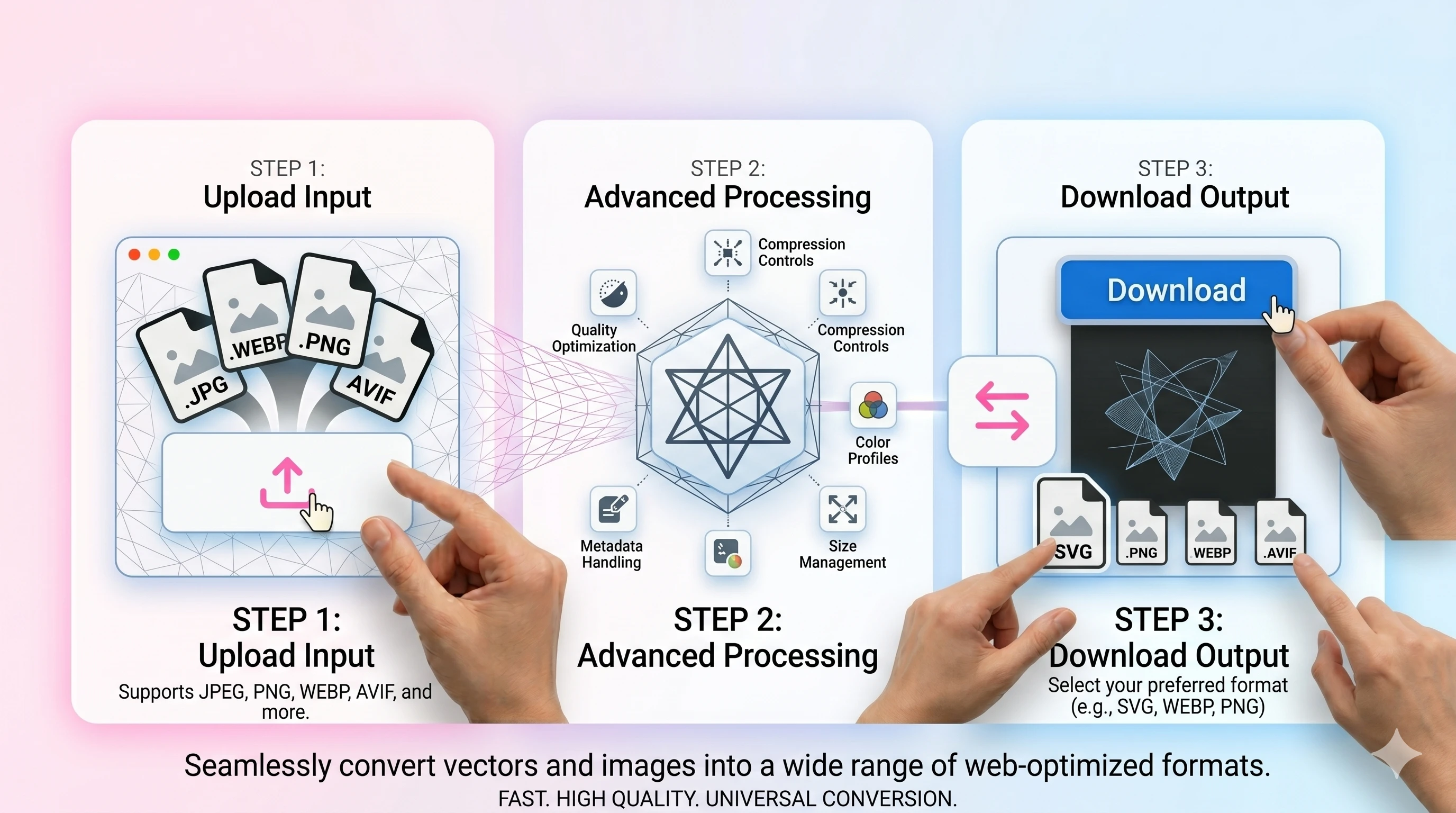
- 1Upload your WEBP file.
- 2Convert to PNG.
- 3Download the PNG output (alpha preserved if present).
FAQ
Will the PNG be larger than WEBP?
Often yes—PNG is lossless. Convert to PNG mainly for editing or compatibility.
Does transparency carry over?
Yes. If the WEBP has alpha, PNG will preserve it.
Can I convert to JPEG instead?
Yes—use WEBP to JPEG when you need smaller files for older apps, but note JPEG can’t keep transparency.
Do you add watermarks?
No. Downloads are clean and instant.