AVIF to JPEG converter
Saved an AVIF from a site and now need to hand it to a teammate whose editor still chokes on the format? This converter is for that. It decodes the AVIF (including images with alpha), flattens transparency against a background color of your choice, and writes a standard JPEG at your chosen quality. Keep a copy of the original AVIF — it's smaller and newer tools will all support it — and use the JPEG only for the specific compatibility case at hand. Quality slider at 88-92 gives you a file indistinguishable from the source.
Upload a AVIF → get JPEG. JPEG has no transparency; the background fills transparent pixels.
Original
Converted
This tool processes on your device; your file is not uploaded for processing.
About
AVIF is the most aggressive of the modern image formats — derived from the AV1 video codec, designed to compress photographs at roughly half the size of an equivalent JPEG with no perceptible difference, and shipping in every major browser since the early 2020s. The catch is that the world outside the browser has not caught up yet. Slack rendered AVIF inconsistently for a long time, several mainstream chat clients still don't open it inline, certain Office versions silently fail to embed it, and a long tail of older photo viewers, ticketing systems, and design plugins simply don't recognise the codec. This converter is the bridge for those moments: AVIF in, JPEG out, with the quality and background controls you need to land the file somewhere it'll actually open.
The most common path into needing this conversion is downloading. Right-click an image on a current news site, a property listing, or a recipe blog and there's a real chance it lands on disk as .avif because that's what the CDN served to your browser. That's transparent in the moment — the file viewer shows it, the browser shows it — but the moment the file has to travel anywhere else, things start breaking. Forwarding it to a colleague whose Slack workspace doesn't preview AVIF, attaching it to a vendor email, dropping it into a Confluence page, uploading it to a DMS that filters by extension: all of these can produce silent failures that look like missing images on the receiving end.
Quality is worth treating with care because AVIF to JPEG is a re-encode, not a lossless copy. The original AVIF was already a lossy compression; converting to JPEG layers another lossy pass on top, and the artefacts of two different formats don't always combine politely. At 88–92 the second loss is essentially invisible on a normal screen — that's the recommended starting point and the default the tool uses. Below 80, particularly with photographs that include skies, clouds, or out-of-focus backgrounds, the interaction starts producing faint blocky or banded patterns. Above 92 you mostly inflate the file without buying anything visible.
Transparency is a real consideration here because AVIF supports a full alpha channel and JPEG does not. If the source has any transparent or semi-transparent areas — common in product cutouts, marketing graphics, and stickers — those have to be flattened against a background colour during the conversion. The picker covers white, black, and custom hex; choosing the colour that matches the page or document the JPEG will eventually sit on is the difference between a logo that looks like it belongs there and a logo with a visible halo around it. Picking white by default and then placing the JPEG on a coloured background is the most common way this goes wrong.
Animated AVIF exists, similar to animated WEBP, and JPEG cannot hold animation. When an animated AVIF runs through this converter, only the first frame ends up in the JPEG output. That's useful for a still preview but not for preserving the loop; if the animation matters, look at converting to APNG, animated WEBP, or a short MP4 instead. Most AVIFs people encounter in the wild are still images, but if you've grabbed an animated AVIF off a meme site or a product configurator, that's the limitation to be aware of before you convert.
Size is the part that flips compared to most conversions. The output JPEG will almost always be larger than the source AVIF at the same perceived quality, because AVIF compresses photographic content significantly more efficiently. A 200KB AVIF might come out as a 350KB or 500KB JPEG without anything visibly changing. That's the structural difference between the two formats — it's not a bug — and it's the reason you should keep the original AVIF instead of treating the JPEG as a permanent replacement. The JPEG exists to satisfy a specific compatibility constraint; the AVIF remains the canonical file.
On colour and metadata, both move through the conversion sensibly. Colour profiles are preserved as sRGB so the JPEG renders the same way the AVIF did in the browser; if the original was tagged with a wider colour space like Display P3, the values are tone-mapped down cleanly without surprising hue shifts. EXIF metadata that the AVIF was carrying is normally dropped on the way out — useful when sharing publicly, less useful if the file's metadata is itself the point. If metadata accuracy matters for the workflow, source from the original AVIF and keep it untouched alongside the JPEG copy.
Discord and Slack file-upload edge cases are worth a separate mention because they catch people off guard. Discord has historically been generous about formats it accepts but inconsistent about how it previews them — an AVIF will sometimes show as a clickable link instead of an inline thumbnail depending on the channel's permissions and the user's client version. Slack handles AVIF differently across desktop, web, and mobile clients, with some workspaces rendering them inline and others stripping them to a download link. Converting AVIF to JPEG before posting to either platform sidesteps the variability entirely, which matters when the screenshot is the substance of the message rather than supplementary context.
Cloud storage and Google Photos behaviour adds another wrinkle worth flagging. Google Photos has been quietly converting some uploads to AVIF on the back end for a while, which means a file that was originally a JPEG can come back out as an AVIF if downloaded through certain export paths or shared via specific links. Most users don't realise this happened until they try to embed the file somewhere that rejects AVIF. Running the file through this converter restores it to JPEG without any of the original quality loss compounding further; the AVIF was already a re-encode of the JPEG, so going back to JPEG just adds one more lossy generation rather than starting fresh — but at typical quality levels the cumulative damage is hard to spot, and the receiving system actually accepts the file.
App-by-app failure modes are worth mapping briefly because they're hard to predict otherwise. Older versions of Microsoft Word silently fail to embed AVIF, leaving a placeholder. Some Slack workspaces strip AVIF attachments from previews depending on enterprise admin settings. WhatsApp Web sometimes rejects AVIF outright when sent from a desktop drag-and-drop. Notion and Confluence inconsistently render AVIF depending on the rendering pipeline a particular workspace uses. Photoshop CC versions before 2023 require a separately installed plugin to open AVIF at all. None of these failures are obvious until you hit them; converting AVIF to JPEG up front when you're handing the file to a system whose AVIF support you can't verify is a small piece of insurance against silent breakage.
Practically the converter takes one drop. AVIF in, JPEG out, with a quality slider and a background colour picker for the cases where the defaults need adjustment. Files are processed in temporary storage, links expire quickly, no signup, no watermark, and no daily quota counting down in the background. Multiple files run through one after another, which is what matters when cleaning up a stack of saved-from-browser images that all came down as AVIF and need to be sent to someone whose tooling refuses to look at the format. Most files convert in well under a second; very large originals take a little longer but still finish in a single pass.
Use cases
- Open AVIF images in editors that only accept JPEG.
- Share photos in chats or email clients that block AVIF.
- Flatten transparency for predictable results on any viewer.
- Export JPEGs for printing and legacy uploads.
How it works
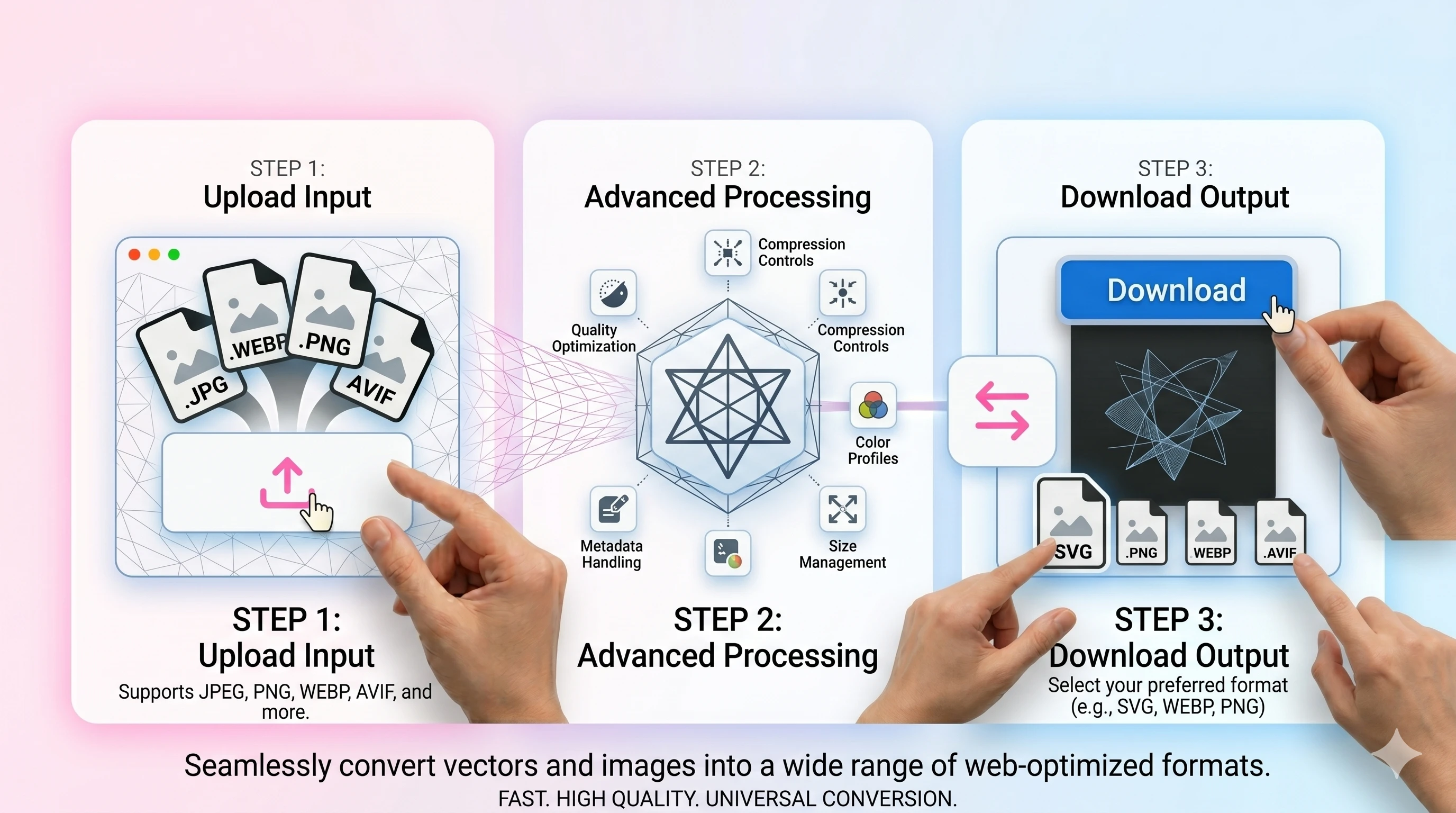
- 1Upload the AVIF file.
- 2Set quality and background (if needed).
- 3Convert and download the JPG/JPEG.
FAQ
Why convert AVIF to JPEG?
JPEG is widely supported. Convert when a site or app can’t open AVIF.
What happens to transparency?
JPEG has no alpha, so transparent pixels are filled with your chosen background color.
Will quality change?
JPEG is lossy. Use higher quality values for photos you want to keep sharp.
Is the conversion free?
Yes—no signup is required for basic conversions.