PDF & documents7 min read
Publisher alternatives in 2026 and how to move your work
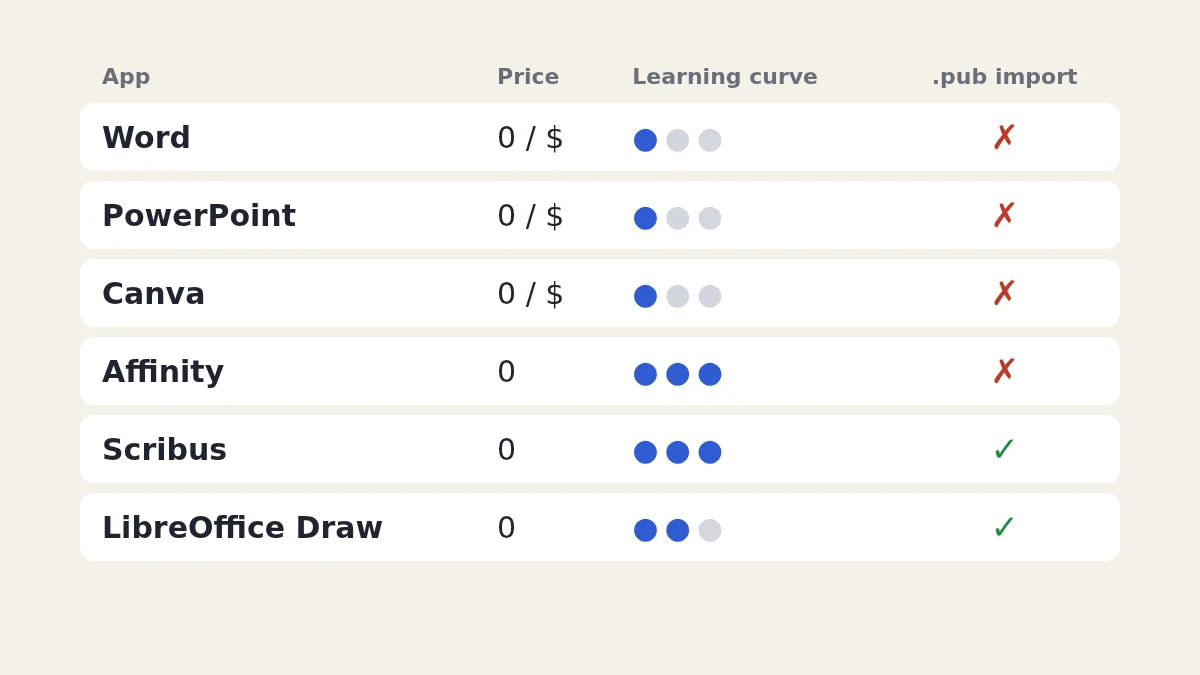
Word, PowerPoint, Canva, Affinity, Scribus and LibreOffice Draw compared on price, learning curve and .pub import, plus a step-by-step plan to move your files.
You can open a .pub file without Publisher by converting it: a Publisher converter turns it into a PDF, page images or an editable LibreOffice Draw file, and LibreOffice Draw can also open many .pub files directly. If you still have a perpetual Office licence with Publisher installed, File > Save As > PDF gives the most faithful copy.
Checked on 30 September 2026 against Microsoft's notice Microsoft Publisher will no longer be supported after October 2026. Omnvert is not affiliated with Microsoft; Microsoft product names appear here only to describe file compatibility.
If you just want your files back in a readable form, the shortest route is to convert your .pub files to PDF with the Omnvert Publisher converter. It takes one file, a folder or a ZIP of folders, and shows page 1 of up to 20 files before you pay anything. The rest of this article explains what Microsoft changed, who is affected, and which of the remaining options suits which situation.
Microsoft's support page says Publisher reaches end of life in October 2026, is no longer included in Microsoft 365 after that, and that existing on-premises suites are no longer supported. The page gives three concrete points:
The detail that matters most is in the FAQ: a perpetual licence does not switch off. Microsoft writes that if you have the perpetual version, "although support will end, you will still be able to install and use the app beyond this date." What stops is security fixes and help, not the program. Microsoft's own recommendation for everyone else is to convert existing files to PDF or Word format.
| Your setup | What happens to Publisher | What to do |
|---|---|---|
| Microsoft 365 subscription | No access after 1 October 2026 | Convert your .pub files; you can no longer export them from Publisher |
| Office 2021 or Office LTSC 2021 that included Publisher | Keeps running; support ends 13 October 2026 | Export PDFs from Publisher while that PC still works, and keep them as your archive |
| Office 2019 or 2016 with Publisher | Keeps running; support already ended on 14 October 2025 | Same as above |
| Office 2024 or Office LTSC 2024 | Publisher was never part of these editions | Convert the files |
| Mac | Publisher has never been available for macOS | Convert to PDF, or to an editable ODG file |
The Office 2024 row surprises people. Microsoft's Office 2024 FAQ lists Word, Excel, PowerPoint, OneNote and (in Home & Business) Outlook, and states that Office LTSC 2024 does not include Publisher because it is being retired. Buying the newest one-time Office therefore does not give you a way to open .pub files.
Ranked by how faithful the result is and how much effort it takes, from the top:
Ready to try it on your own archive? Open the bulk Publisher to PDF converter and start with the free preview. The first file each day is free at full quality with no watermark; after that the existing plans apply (a credit pack covers 3 files, a Day Pass lasts 24 hours, and Pro is the subscription). The converter page shows the current prices when you go past the free file. Once you have PDFs, you can merge them into one file or compress them for email.
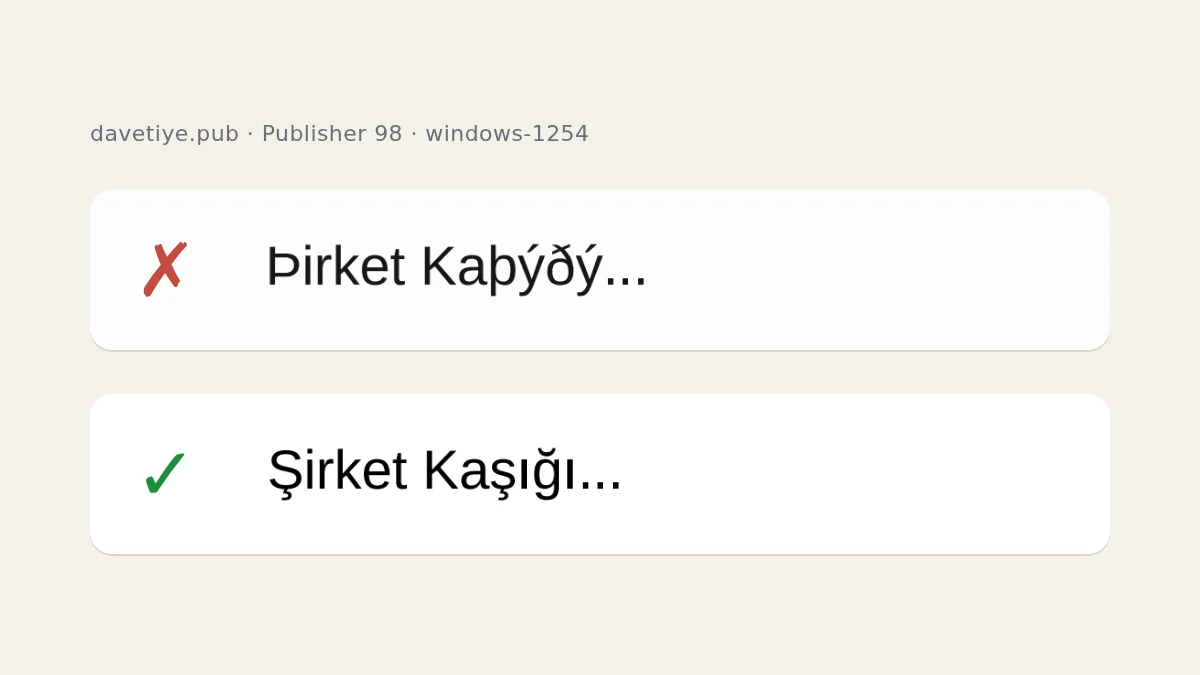
Files saved by Publisher 97 and 98 do not store text as Unicode. They store it in the Windows code page of the PC that saved them: Windows-1254 on a Turkish PC, Windows-1251 on a Russian one, and so on. A converter that assumes the Western European code page turns "Şirket Kaşığı" into "Þirket Kaþýðý", because the bytes for Ş, ş, ı and ğ mean Þ, þ, ý and ð in that table.
Omnvert detects the code page and decodes these files correctly, so Turkish comes out as Turkish. The same applies to Cyrillic, Greek, Hebrew, Arabic and Central European text. If you have old school newsletters, parish bulletins or company forms from the late 1990s, this is the part to check first in the preview.
Microsoft fonts are not available on the conversion server, so each one is replaced by an open font. For many common faces there is a metric-compatible twin: every character has the same width, so line breaks stay exactly where they were. That covers Arial, Times New Roman, Courier New, Calibri, Cambria, Georgia, Arial Narrow, Segoe UI, Palatino and Book Antiqua, Bookman Old Style and Century Schoolbook.
Other fonts get a close design rather than an exact twin, and there text may reflow slightly: Garamond, Franklin Gothic, Gill Sans, Rockwell, Comic Sans and Century Gothic are typical examples. The report names every replacement, so you know which files deserve a second look.
Complex layouts can shift. Text that flows through linked text boxes, such as newsletter columns or a story "continued on page 2", may repeat in each box in the current version; the report warns you when that happens. WordArt effects and some embedded objects may be simplified. For files where every millimetre matters, such as a print-ready brochure, an export from Publisher itself remains the most faithful option if you still have access to it.
Conversion runs on Omnvert's server, using LibreOffice inside an isolated container that has no network access. Outputs are deleted 15 minutes after you download them, originals within 120 minutes, and a bulk download you never collect after 60 minutes.
Yes, but not in Publisher if you use Microsoft 365: subscribers lose access after 1 October 2026. You can convert the files to PDF, images or ODG, or open many of them in LibreOffice Draw. A perpetual Office 2021, 2019 or 2016 licence with Publisher keeps working after support ends.
Microsoft says support for the perpetual version ends on 13 October 2026, when Office 2021 and Office LTSC 2021 reach end of support, but that you can still install and use the app after that date. You stop getting security updates, not the program.
No. Microsoft's Office 2024 FAQ lists Word, Excel, PowerPoint, OneNote and, in Home & Business, Outlook, and says Office LTSC 2024 does not include Publisher because it is being retired.
No. Microsoft's suggested route is to save the .pub file as PDF and then open that PDF in Word, which makes it editable but may change the layout, especially when there are many graphics.
Publisher 97 and 98 stored text in the Windows code page of the PC that saved the file. A converter that assumes the Western European code page shows Ş as Þ and ı as ý. Omnvert decodes those files with the right code page, so the Turkish letters come back.
Word, PowerPoint, Canva, Affinity, Scribus and LibreOffice Draw compared on price, learning curve and .pub import, plus a step-by-step plan to move your files.
A PDF has no cells, only positioned glyphs. How extractors infer columns from ruling lines and x coordinates, where that fails, and how to verify the result.
OCR accuracy is set by the image, not the engine: resolution, binarisation, skew, compression artefacts, language data and layout. Plus how to judge the output.