Move Google Photos to Apple Photos Without Losing Dates
To move Google Photos to iCloud with the right dates, export with Google Takeout, write the dates from Google's JSON into the files, then import the fixed folder into Photos on a Mac with iCloud Photos turned on. Google's direct transfer to iCloud is the alternative without a download.
Prerequisites
- A Mac with the Photos app and enough free disk space for the library
- Enough iCloud storage for the whole library, if you use iCloud Photos
- Google Takeout
- Omnvert Google Takeout Fixer
Step-by-step
- 1
Export Google Photos with Takeout
On the Takeout page, deselect everything, tick Google Photos, choose ZIP and the largest archive size, and create the export. Google emails a link, usually the same day; Google's help page says archives expire after about 7 days and each one can be downloaded 5 times. Details are in our Takeout download guide.
- 2
Fix the dates
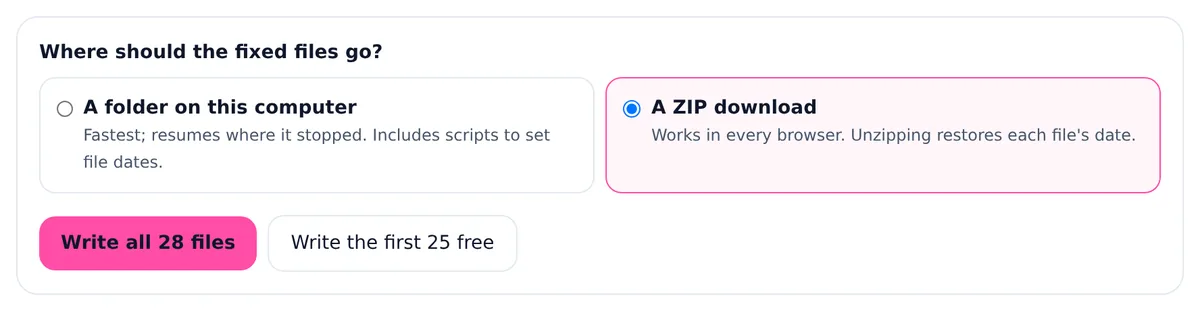
Add every ZIP part to the Google Takeout Fixer, wait for the report, and set the time zone. Leave "Skip album copies" on for now; the album section below explains when to turn it off. Write to a folder on the Mac (Chrome or Edge) or download the ZIP and double-click it in Finder.
- 3
Test with a small batch
Before importing everything, import one year folder or the 25 free files into Photos. Check the dates in the Library view and open the Info window of a few photos to see the location. If a day is off by a few hours, the time zone was wrong: fix it in the tool and write again.
- 4
Import into Photos on the Mac
In Photos choose File > Import, select the fixed folder and click Review for Import, then Import All New Photos. To keep the folders, select Keep Folder Organization first. You can also drag the folder from Finder onto the Photos window; Apple's import guide says that creates an album named after the folder.
- 5
Let iCloud Photos upload
With iCloud Photos turned on, Photos uploads the imported items. Apple says the time this takes depends on the size of your collection and your internet speed. Leave the Mac on power and awake; a large library can take days.
Steps and menu names were checked against Google, Apple and Immich documentation on that date. Omnvert is not affiliated with Google, Meta or Microsoft; product names are used only to describe compatibility.
Start with your own export: fix your Takeout dates before importing to Apple Photos. The scan and preview are free and the first 25 files are written for free, so you can run the small test in step 3 without paying.
Why not import the Takeout as it is
Photos sorts by the date stored inside each file. Takeout keeps Google's dates in separate JSON files that Photos does not read, so screenshots, saved chat images and scans arrive on the day you unzipped them, and photos lose the location Google added. How to fix Google Takeout photo dates shows the before and after. Changing dates later in Photos works one selection at a time (Image > Adjust Date and Time in Apple's guide), which is not practical for thousands of photos.
The alternative: Google's direct transfer to iCloud
Google and Apple also offer a transfer that copies photos from Google Photos straight to iCloud Photos, without a download. Apple's page on the transfer says the file name, description, file type and location go along, that it can take from several hours to a few days, that you need enough iCloud storage, and that it does not work while Advanced Data Protection is on. Live Photos, Motion Photos and Memories are not transferred, and RAW files land in iCloud Drive. Google's side lists Locked Folder content and the video part of Live and Motion Photos among the things that are not copied. If that suits you, use it. The Takeout route is for people who want a local copy they control, use Advanced Data Protection, or want to check every file before it reaches iCloud.
Albums
Takeout puts each album in its own folder and repeats the album's photos there, next to their originals in the year folders. With "Skip album copies" on, each photo is imported once and the album folders hold only what is not elsewhere. That gives a clean library, but no albums. If albums matter, turn the option off, write again, and import with Keep Folder Organization, or drag an album folder onto Photos to get an album with its name. Photos can then hold the same picture twice, once from the year folder and once from the album; what is inside a Google Photos Takeout explains the album copies. For a handful of albums, rebuilding them by hand in Photos after a clean import is often less work.
Live Photos, edits and captions
- Live Photos: Takeout exports the still and the short video as two files. The tool gives both the same date from their shared JSON. Whether Photos joins them back into one Live Photo depends on pairing data the iPhone wrote into both files; if it is missing, you get a photo and a short video side by side.
- Edits: Google exports an edited copy (for example IMG_1234-edited.jpg) next to the original. It has no JSON of its own, so the tool uses the original's and marks the match as medium. Delete the version you do not want after the import, or before it in the output folder.
- Captions: with "Write Google Photos captions into the photos" on, the description from the JSON goes into the EXIF description field of JPEGs. Apps differ in whether they show that field as the caption, so check one photo in Photos before relying on it.
- HEIC photos from an iPhone usually carry their own camera date, so they sort correctly even though this version copies them unchanged.
How long the iCloud upload takes
Apple gives no fixed figure: upload time depends on the size of the collection and the internet speed, per Set up and use iCloud Photos. Divide the size of your library by your upload speed for a rough lower bound. The Photos window shows the upload status at the bottom of the Library view. If the Mac is short on space, the Optimize Mac Storage setting in Photos > Settings > iCloud keeps smaller versions locally once the originals are in iCloud.
Honest limits of this version
- JPEG photos and MP4 or MOV videos get the date written inside the file. JPEGs also get the location and, if you ask for it, the caption. Videos get the date only.
- HEIC, PNG and WebP files are copied unchanged. Their date goes into the file date of the ZIP entry and into the set-dates scripts of a folder output, not inside the file. The report marks them as "date outside file".
- GIF, BMP and RAW files never get a date written inside them.
- A date the camera already wrote is kept, unless you turn on "Replace dates the camera already wrote with Google's date".
- A year in a folder name, such as "Photos from 2019", is never written as a date. Google files late uploads and scans under the upload year, so the folder is not proof of when a photo was taken.
Frequently asked questions
Can I do this on an iPhone instead of a Mac?
For a whole library, a Mac or a Windows PC is far easier: Takeout archives are large and the tool needs a desktop browser. Google's direct transfer to iCloud needs no computer at all.
I use Windows. Can I still get my photos into iCloud?
Yes. Fix the files on the PC, then upload them with iCloud for Windows or on iCloud.com. The dates travel inside the files, so they arrive correct.
Will Photos keep the location?
Yes for JPEGs: the tool writes the GPS position from the JSON when the photo has none. HEIC, PNG and WebP keep only the location they already had in this version.
Do I need to delete the photos from Google Photos?
No. Both Takeout and the direct transfer make copies. Delete from Google only after you have checked the new library.
Some photos still show the wrong day. Why?
Check the time zone first: a photo taken near midnight can move to the next or previous day. Then look at the report: files listed as "No date found" or "date outside file" did not get a date inside them.