Download Google Takeout the Right Way: Sizes, Split Archives, Missing Parts
Google Takeout splits a large Google Photos export into several ZIP files numbered -001, -002 and so on. Choose ZIP and the largest size you can download reliably, download every part within about 7 days, and keep all parts together: a photo and its JSON can be in different ZIPs.
Prerequisites
- Free disk space for the archives, plus about the same again for a fixed copy
- A stable connection; large parts take hours on a slow line
- Google Takeout (takeout.google.com)
- A desktop browser
Step-by-step
- 1
Select only Google Photos
Open takeout.google.com, click Deselect all, and tick Google Photos. Its button lists the albums that will be included; leave all of them selected unless you want a partial export. Then click Next step. The steps follow Google's own help page.
- 2
Choose ZIP, not TGZ
Under file type, pick .zip. Google notes that .tgz may need extra software on Windows. The Google Takeout Fixer reads ZIP parts directly, without extracting them; a .tgz has to be extracted first and added as a folder, which needs twice the disk space.
- 3
Pick the archive size
Takeout splits the export into parts no larger than the size you choose; the largest option is 50 GB, which Google suggests if you want fewer parts. Fewer, larger parts are easier to keep together. Smaller parts are kinder to a slow or unreliable connection, because a failed download only costs that part. On a fast, stable line take 50 GB; otherwise 10 GB is a reasonable middle.
- 4
Create the export and wait for the email
Choose "Send download link via email" and a one-time export, then Create export. Google says an export can take from a few minutes to a few days, and most people get the link the same day. Changes you make in Google Photos after you start may not be included.
- 5
Download every part within the deadline
The email links to a page that lists each part. Google says archives expire in about 7 days and each one can be downloaded only 5 times. Download the parts one or two at a time into one folder and do not rename them; the -001, -002 numbering is how missing parts are spotted.
- 6
Check that no part is missing
Compare the number of files with the list on the download page. Then add all parts to the Google Takeout Fixer: it warns when the numbering has a gap, when many JSON files have no photo (often a missing last part), when parts from two different exports are mixed, and when a ZIP looks incomplete or damaged.
Steps and menu names were checked against Google, Apple and Immich documentation on that date. Omnvert is not affiliated with Google, Meta or Microsoft; product names are used only to describe compatibility.
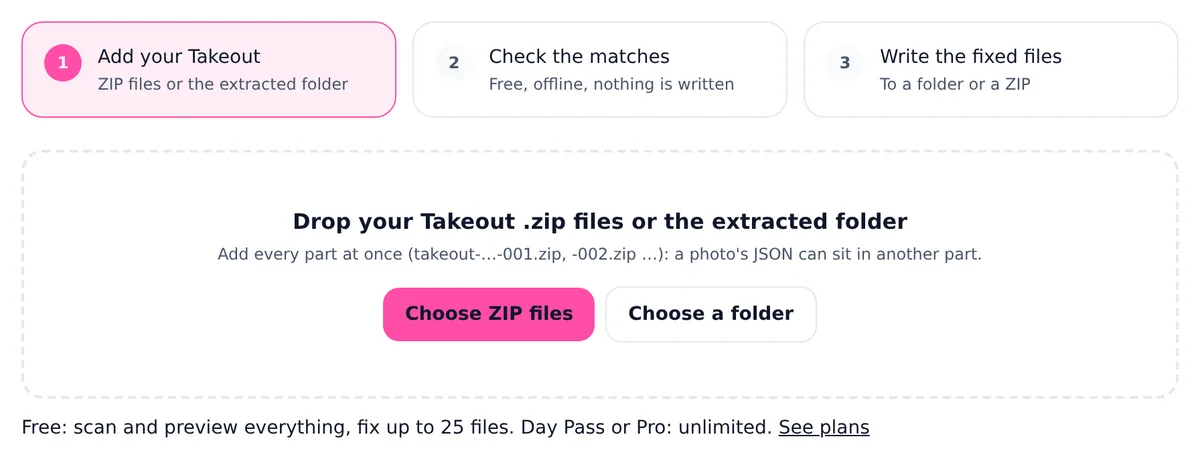
Once the parts are on your disk, add them all to the Google Takeout Fixer to check for missing parts and fix the dates. The check runs in your browser and is free; nothing is uploaded.
How the parts are named
Each export has a timestamp, and its parts are numbered in order:
takeout-20261001T081500Z-001.zip
takeout-20261001T081500Z-002.zip
takeout-20261001T081500Z-003.zipNewer exports may add an extra number before the part, as in takeout-20261001T081500Z-3-001.zip; that is still one export. A browser that already has a file with the same name saves a copy as "… (1).zip"; the tool recognises those too, but delete true duplicates so you do not add the same part twice. Parts with different timestamps come from different exports and should not be mixed.

Why every part matters for the dates
Takeout does not keep a photo and its JSON in the same part. In our test export, photos from June 2019 sit in -001 while some of their JSON files are in -002. Fix only -001 and those photos come out without a date. That is why the tool takes all parts at once and indexes them together. Why some Takeout photos do not match their JSON covers this and the naming quirks in detail.
Extract or not?
You do not need to extract anything for the tool. If you do extract, for example because Safari opened the ZIPs automatically, extract every part into the same destination so the folders merge into one Takeout folder, then choose that folder. Separate folders such as "Takeout" and "Takeout 2" break the link between a photo and a JSON that sits in another part.
When the download keeps failing
- Remember the limit of 5 downloads per part. A part that stopped halfway counts, so do not start the same part in several tabs.
- If a ZIP will not open or the tool says it looks incomplete or damaged, download that part again; the other parts stay valid.
- If the export expired or the attempts ran out, request a new export. Google's advice for failing exports is to try again or to export one product at a time.
- Do not mix parts of the old and the new export. Their timestamps differ and the tool warns about it.
After the download, fix the photo dates and move on to Apple Photos or Immich. What is inside a Google Photos Takeout explains the folders you will find.
Honest limits of this version
- JPEG photos and MP4 or MOV videos get the date written inside the file. JPEGs also get the location and, if you ask for it, the caption. Videos get the date only.
- HEIC, PNG and WebP files are copied unchanged. Their date goes into the file date of the ZIP entry and into the set-dates scripts of a folder output, not inside the file. The report marks them as "date outside file".
- GIF, BMP and RAW files never get a date written inside them.
- A date the camera already wrote is kept, unless you turn on "Replace dates the camera already wrote with Google's date".
- A year in a folder name, such as "Photos from 2019", is never written as a date. Google files late uploads and scans under the upload year, so the folder is not proof of when a photo was taken.
Frequently asked questions
Why did Google Takeout give me multiple ZIP files?
Because the export is larger than the archive size you chose. Google creates as many parts as needed; choosing 50 GB gives the fewest parts.
How long do I have to download the archives?
About 7 days, according to Google, and each archive can be downloaded 5 times. After that, request a new export.
How do I know if a part is missing?
Look for a gap in the -001, -002 numbering and compare with the list on the download page. A missing last part leaves no gap, but the tool notices that many JSON files have no photo and warns you.
Can I use the .tgz files I already downloaded?
Yes, but extract them first, all into the same folder, and add that folder. Or download the export again as ZIP.
Do I need to download the parts in order?
No. Order does not matter, only that every part ends up in the same place before you start.