How to Fix Google Takeout Photo Dates (No Command Line)
Takeout photos show the wrong date because Google keeps the date taken in a separate JSON file, not in the photo. Add every Takeout ZIP to the Google Takeout Fixer, check the matches, and write the dates back inside the files in your browser.
Prerequisites
- Every part of your Google Photos Takeout (takeout-…-001.zip, -002.zip …) or the extracted folder
- Free disk space roughly the size of your photos, for the fixed copy
- Omnvert Google Takeout Fixer in a desktop browser (Chrome or Edge for folder output; any browser for a ZIP)
Step-by-step
- 1
Download every part of the Takeout
Leave the archives zipped; the tool reads them directly. A large library arrives as several numbered ZIPs, and a photo's JSON can sit in a different part than the photo, so you need all of them. If you have not exported yet, follow how to download Google Takeout the right way first.
- 2
Add all parts at once
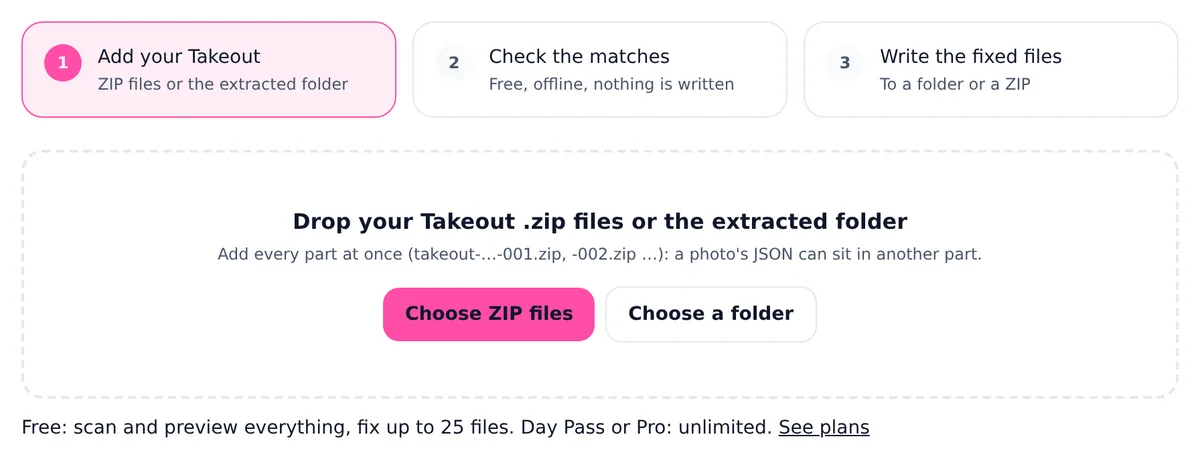
Open the Google Takeout Fixer and drop every takeout-….zip onto the page, or press Choose ZIP files and select them together. ZIP64 archives up to 50 GB each work. If you already extracted the archives, press Choose a folder instead. A .tgz download has to be extracted first.
- 3
Let the scan finish
The scan reads the archives, indexes every entry, parses the JSON sidecars and checks which photos already carry a date. Nothing is written and nothing is uploaded during the scan; the photos stay on your computer. A few thousand photos take seconds, a large library a few minutes.
- 4
Read the report cards
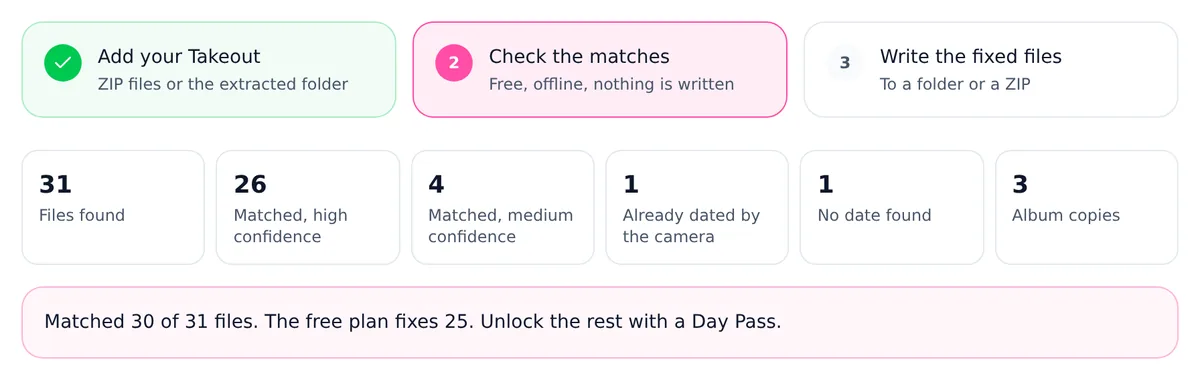
Six numbers sum up the job: files found, matched with high confidence, matched with medium confidence, already dated by the camera, no date found, and album copies. High means the JSON was found by its name. Medium means the tool had to work harder, for example for an edited copy that shares the original's JSON. If "no date found" is large, a Takeout part is usually missing; a yellow note says so when the part numbers have a gap.
- 5
Check the preview and the options
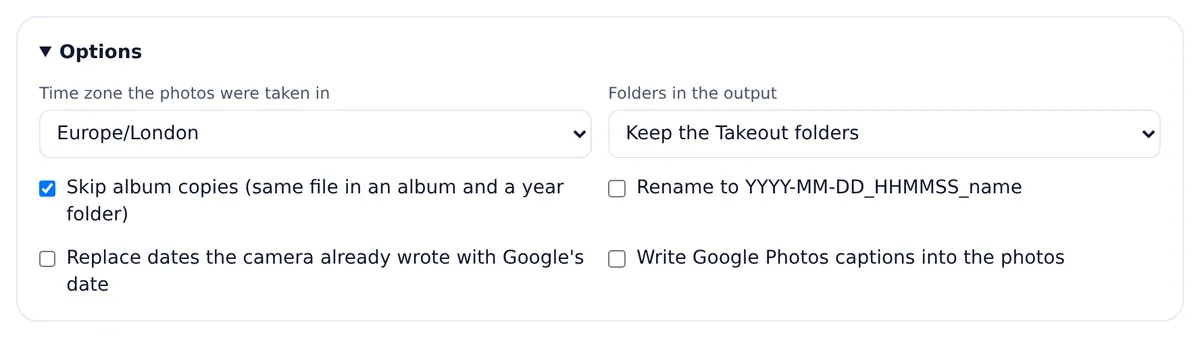
The preview lists the first 200 files with the date that will be written, its offset, GPS and the match type; the filters show only medium matches, files without a date, or album copies. Then set the time zone the photos were taken in (your browser's is the default), the folder layout, and whether album copies are skipped, files renamed to YYYY-MM-DD_HHMMSS_name, camera dates replaced or captions written. Every change updates the preview at once.
- 6
Write the fixed files
Choose a folder on this computer (Chrome and Edge; fastest, resumes where it stopped, and adds set-dates.ps1 and set-dates.sh with a README) or a ZIP download (every browser; unzipping restores each file's date). The free plan writes 25 files per job, which is enough to test your import. A credit covers one whole job; a Day Pass or Pro has no limit.
- 7
Keep the report
The done screen offers the report as HTML and CSV. It lists every file with what was written, the match type, the confidence and the reason, and it is made in your browser. Keep it next to the fixed photos until you have checked the import.
Steps and menu names were checked against Google, Apple and Immich documentation on that date. Omnvert is not affiliated with Google, Meta or Microsoft; product names are used only to describe compatibility.
Ready to try it on your own export? Open the Google Takeout Fixer and restore your photo dates. Scanning and the full preview are free, and the first 25 files of each job are written for free, so you can check the result in your photo app before you pay for anything. The existing plans are listed on the pricing page.
The symptom: everything lands on the download day
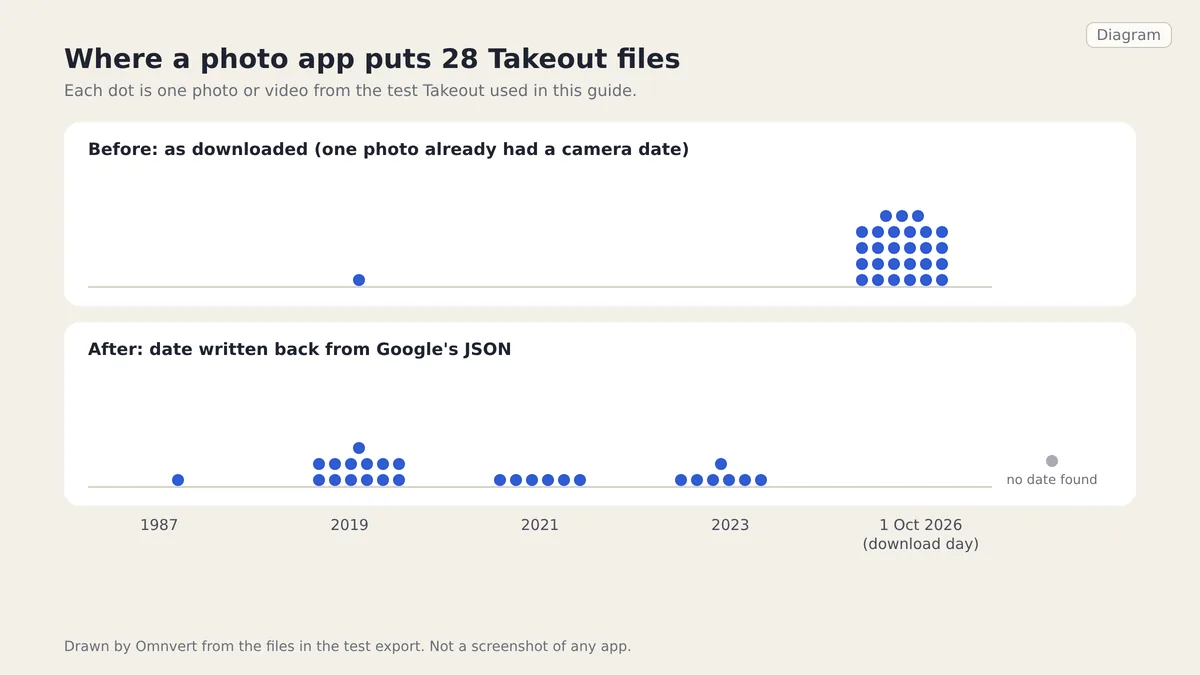
You import a Google Photos Takeout into another app and years of photos sit in one heap on the day you downloaded the archive, while a few camera photos appear where they belong. The diagram below shows that with the 28 files of our test export: before, 27 dots pile up on 1 October 2026; after the fix, they spread over 1987, 2019, 2021 and 2023, and one file stays undated because nothing in the export says when it was taken.
Why it happens
Google Photos keeps the date taken, the location and your caption in its own database. Takeout writes that information into a JSON file next to each photo, for example IMG_20190614_183507.jpg.supplemental-metadata.json, and many photos have no date inside the image file itself: screenshots, pictures saved from chats, scans, or files whose date Google changed after upload. Apple Photos, Immich and other apps read the date inside the file and ignore Google's JSON, so they fall back on the file's own date, which is the day you unzipped it. The JSON also does not always sit next to its photo; why some Takeout photos do not match their JSON explains the naming rules that break simple scripts.
What the screens look like
Check the result
Open a few fixed files before you import thousands. On a Mac, Finder's Get Info shows the file date; in Windows, the Details tab of Properties shows Date taken for JPEGs. If you use ExifTool, this is one photo from our test export before and after:
As it came out of Takeout:
FileModifyDate : 2026:10:01 07:56:14+00:00
(no DateTimeOriginal, no GPS)
After the Takeout Fixer (London run | Istanbul run):
DateTimeOriginal : 2019:06:14 18:35:07 | 2019:06:14 20:35:07
OffsetTimeOriginal : +01:00 | +03:00
GPSLatitude : 38 deg 42' 50.04" N (both runs)
FileModifyDate : 2019:06:14 17:35:07+00:00 (both: the same instant in UTC)The two runs differ only in the chosen time zone. Google stores the moment in UTC, so the wall-clock time depends on where the photo was taken; the offset is written with it, and daylight saving time is handled for each date. If your library spans trips, choose the zone you were in for most photos. Then import a small batch into your app and look at the timeline. Step-by-step import notes are in moving Google Photos to Apple Photos and Google Photos to Immich.
If the result looks right on the 25 free files, write the whole Takeout with the Google Takeout Fixer. A folder output resumes where it stopped if the browser closes, without a second charge.
Honest limits of this version
- JPEG photos and MP4 or MOV videos get the date written inside the file. JPEGs also get the location and, if you ask for it, the caption. Videos get the date only.
- HEIC, PNG and WebP files are copied unchanged. Their date goes into the file date of the ZIP entry and into the set-dates scripts of a folder output, not inside the file. The report marks them as "date outside file".
- GIF, BMP and RAW files never get a date written inside them.
- A date the camera already wrote is kept, unless you turn on "Replace dates the camera already wrote with Google's date".
- A year in a folder name, such as "Photos from 2019", is never written as a date. Google files late uploads and scans under the upload year, so the folder is not proof of when a photo was taken.
Frequently asked questions
Why do my Google Takeout photos all show the same date?
Because the date taken is in a separate JSON file and many photos have no date inside them. Apps then use the file date, which is the day you downloaded or extracted the archive. Writing the JSON date into the files fixes it.
Do my photos get uploaded anywhere?
No. The tool runs in your browser. The only request during a job checks your plan and sends the tool name and a file-count range, never file names or contents. You can watch the network tab, or switch off Wi-Fi after the page has loaded.
Will it change photos that already have the right date?
No. A date the camera wrote is kept, and those files are counted as already dated. Only if you turn on the replace option does Google's date overwrite it.
What happens to files with no date at all?
They are copied unchanged and listed under "No date found". Download the CSV of files without a date from the preview: usually they belong to a missing Takeout part, or they are images Google never had a date for.
Do I need to extract the ZIP files first?
No. Add the ZIPs as they are; the tool reads ZIP64 archives up to 50 GB per part. Only .tgz archives must be extracted first.