3D printing & STL5 min read
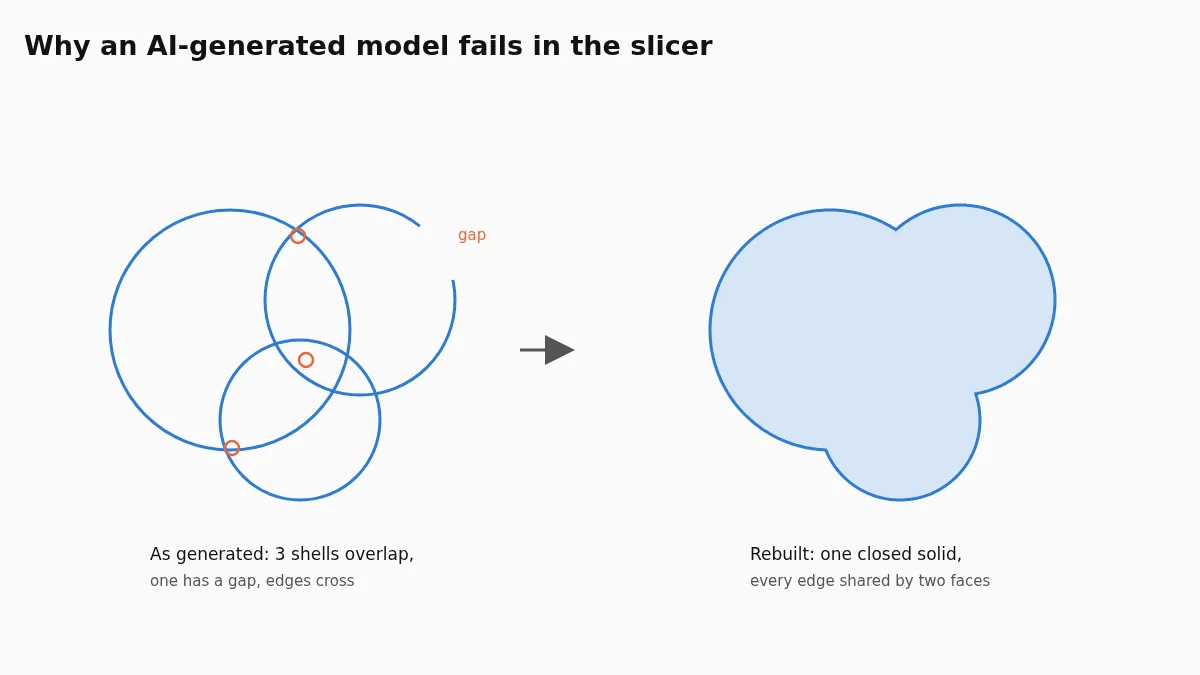
Why AI 3D models fail in the slicer, and how to fix them
Overlapping shells, holes and flipped faces from Meshy, Tripo or Rodin explained, the three ways to fix them, and a measured before-and-after of a rebuild.
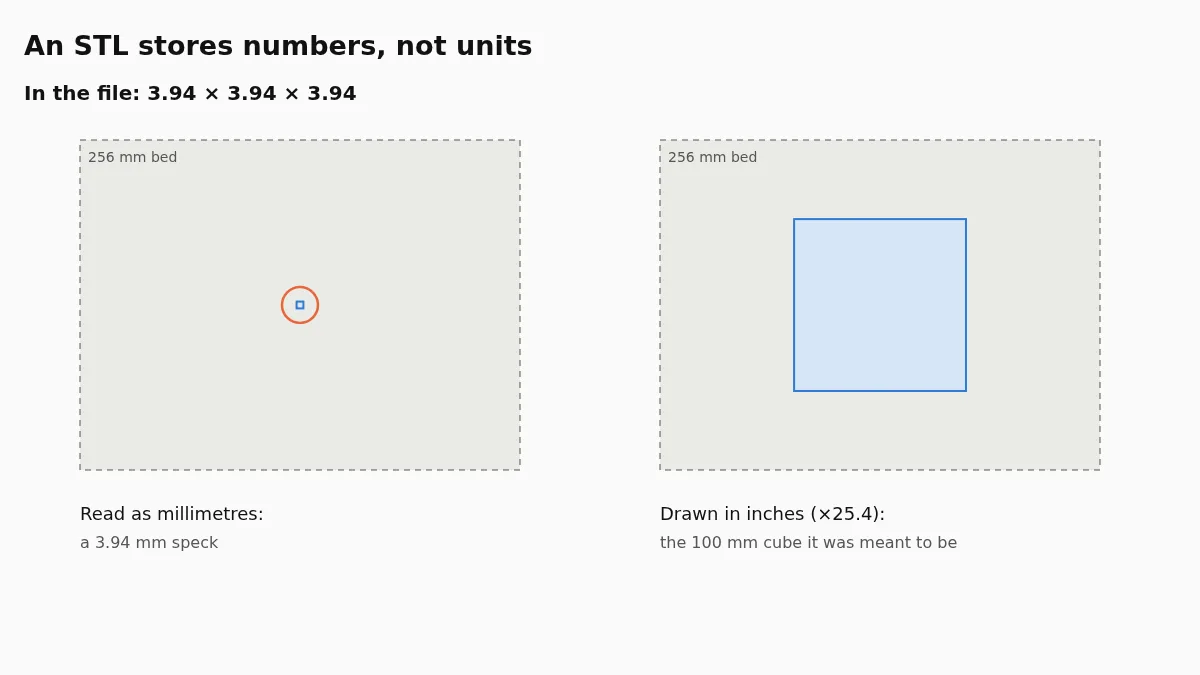
STL files store bare numbers with no unit, and slicers read them as millimetres. A part made in inches arrives 25.4 times too small, in centimetres 10 times, in metres 1000 times. Find the factor and fix the file, not just the slicer project.
The slicer behaviour described here was read from the source code of PrusaSlicer 2.9.0 and of Cura's Uranium framework on 7 November 2026, linked at the end.
An STL that opens far too small or far too large was almost always made in a different unit. The file stores only numbers, and slicers read them as millimetres, so a part drawn in inches arrives 25.4 times too small, one in centimetres 10 times, one in metres 1000 times. Compare the size the slicer shows with the size you expect, find the factor, and scale by it. For inches the fix is one click with our STL inches to mm converter, which writes a corrected file so the next person who opens it gets the right size too.
STL is a list of triangles and nothing else. A binary STL starts with an 80-byte header that software generally ignores, then the number of triangles, then for each triangle a normal and three corner points as plain numbers. There is no field for a unit and no field for a scale. The Wikipedia description of the format says it in one sentence: STL files contain no scale information, and the units are arbitrary.
So when a CAD program writes a 4-inch bracket as an STL, it writes the number 4. Your slicer cannot know the 4 meant inches. Every common slicer treats the numbers as millimetres, which is why the same file looks right in the CAD program that made it and wrong on the build plate.
Formats that came later fixed this. 3MF stores the unit in the file, and OBJ files from many programs at least come with a convention. If you can export 3MF from your CAD program, the problem goes away for new files; for an existing STL, it has to be scaled.
Measure one dimension you know: the height of a figure, the length of a bracket, the diameter of a hole that should take a known screw. Divide the size you expected by the size the slicer shows.
| Expected ÷ shown | Made in | Scale by |
|---|---|---|
| about 25.4 | inches | 25.4 (2540%) |
| 10 | centimetres | 10 (1000%) |
| 1000 | metres | 1000 (100000%) |
| about 0.039 (model is huge) | millimetres, read as inches somewhere | 1/25.4 (3.937%) |
| none of these | no unit was intended | scale to the size you want |
The factor 25.4 is the giveaway for inches, because no other common unit produces it. Without a known dimension, look at the numbers themselves: a figure that is 0.15 tall was almost certainly made in metres, one that is 6 tall and should stand on a desk was probably in inches. Models from AI generators, game engines and many scanning apps are usually in metres or have no real unit at all; for those it is simplest to set the height you want directly.
Some slicers try to catch the problem, but only in narrow cases, which is why it still reaches so many people.
PrusaSlicer checks the volume of each object as it loads. Below 0.001 cubic millimetres it asks whether the object was saved in metres; below 9 cubic millimetres it asks whether it was made in inches, in a dialog titled "The object is too small". Nine cubic millimetres is a cube about 2 mm on each side, so whether you see the question depends on the volume of the part, not on its unit. A thin 4-inch bracket may fall below it and trigger the dialog; a 4-inch box reads as 64 cubic millimetres and loads without a word, simply looking small. The dialog also appears for parts that really are that small, often enough that users have asked for a way to switch it off.
Cura has a preference called Scale extremely small models, on by default. It triggers only when a model is more than 100 times smaller than the build volume in every direction, and it then scales up by a power of ten. That suits models saved in metres. A model in centimetres is usually only 10 to 20 times smaller than the build volume, so it is left alone, and the factor 25.4 can never come out of a power of ten, so a model drawn in inches stays small. The opposite preference, Scale large models, is off by default.
In every slicer you can type a scale of 2540 percent and move on. That works for one print, but the scale is stored in the slicer project, not in the STL, and the next time you or anyone else loads the file, it is small again.
Only the size changes. The triangles are the same, so the shape, the detail and the triangle count stay exactly as they were. If the model has no meaningful unit, as with many AI or scanned models, use the STL resizer instead and type the height, width or depth you want; it scales the other two in proportion.
The conversion itself is exact: the inch has been defined as exactly 25.4 millimetres since 1959, and a binary STL stores each coordinate as a 32-bit floating-point number with about seven significant digits, far finer than any printer. The real fix is upstream. Most CAD programs let you choose the unit when you export, separately from the unit you draw in; set it to millimetres. If you share models, export 3MF where you can, or at least write the unit in the file name or description so the next person does not have to guess.
Models from image-to-3D generators often arrive one or two units tall and with other problems as well: overlapping parts, holes and faces that point inward. Fix the geometry first, then the size. Why AI 3D models fail in the slicer explains the geometry side, and the resizer handles the size in the same session.
It was almost certainly made in another unit. STL stores no unit and slicers read millimetres, so inches arrive 25.4 times too small, centimetres 10 times and metres 1000 times.
Divide the size you expected by the size the slicer shows. If the answer is close to 25.4, it was inches. 10 means centimetres and 1000 means metres.
Only for objects below 9 cubic millimetres, about a 2 mm cube. Many parts drawn in inches are larger than that even when read as millimetres, a 4-inch box for example, so they load without a question.
No. Its Scale extremely small models option scales by a power of ten, and only when the model is over 100 times smaller than the build volume in every direction. That catches models in metres, not inches.
A scale typed in the slicer lives in the slicer project. Fixing the file means it opens at the right size everywhere, for you and for anyone you share it with.
Overlapping shells, holes and flipped faces from Meshy, Tripo or Rodin explained, the three ways to fix them, and a measured before-and-after of a rebuild.
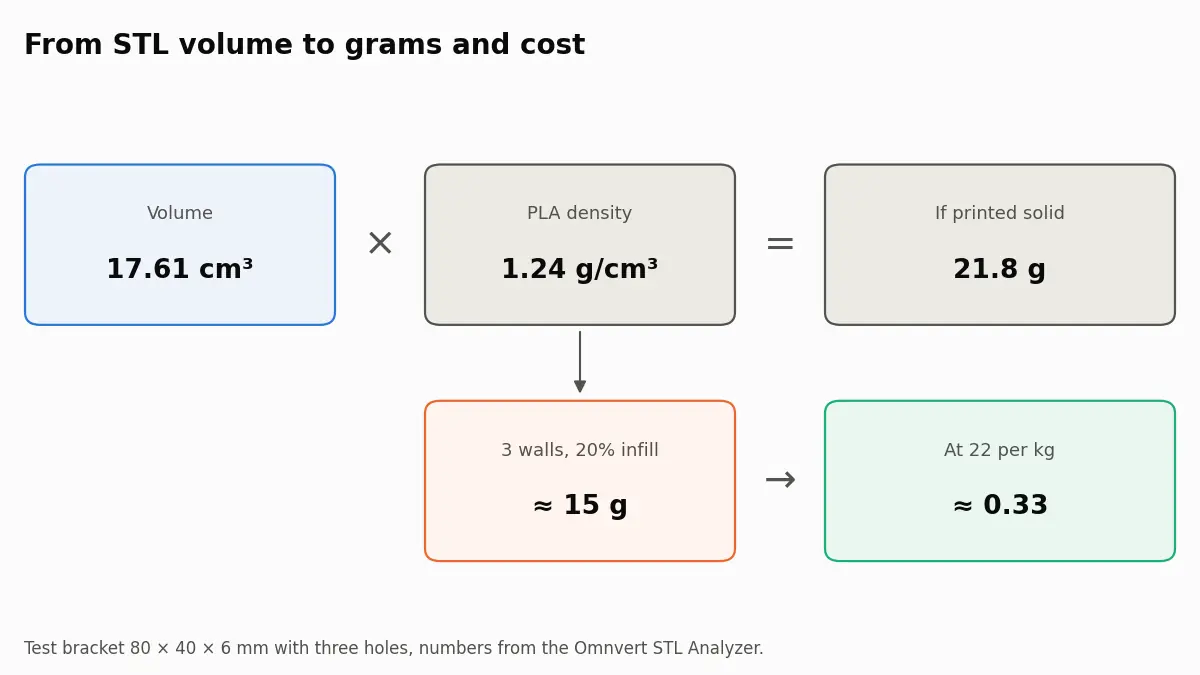
Turn an STL's volume into grams and cost: filament densities from data sheets, how walls and infill change the weight, and how far an estimate can be trusted.
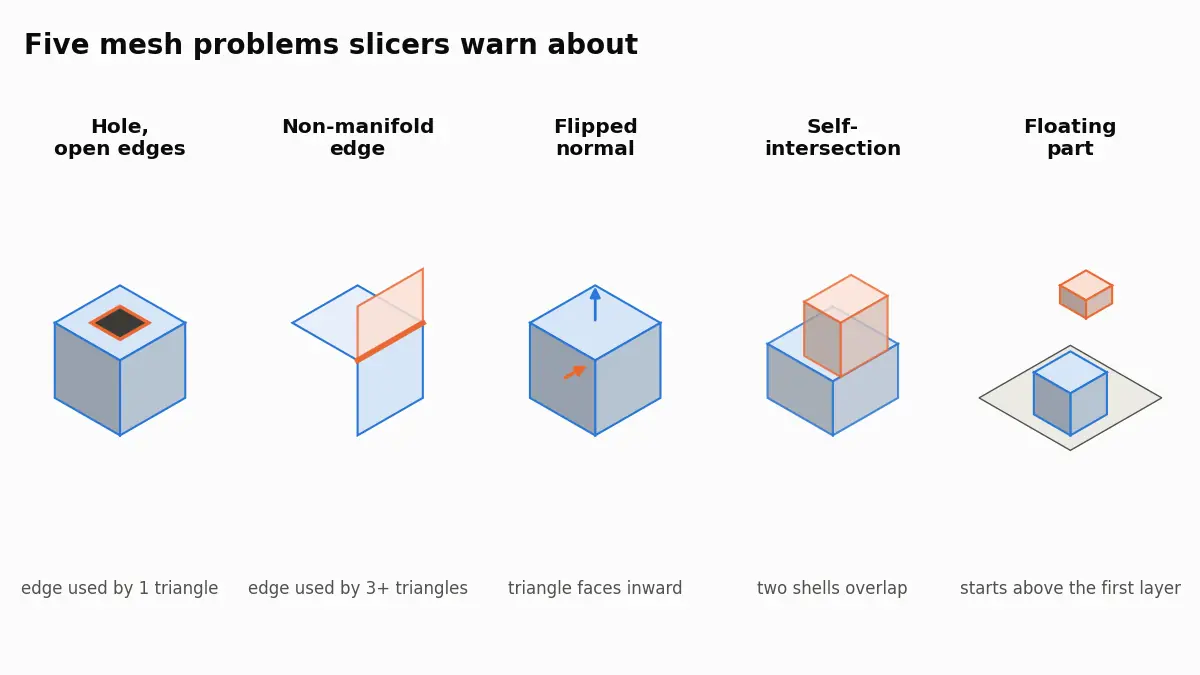
What PrusaSlicer, Bambu Studio and Cura mean by open edges, non-manifold edges, reversed faces and floating parts, and how to repair the STL behind them.